3ds Max
After installing Autodesk 3ds Max, install the following scripts:
Configure W3D Importer
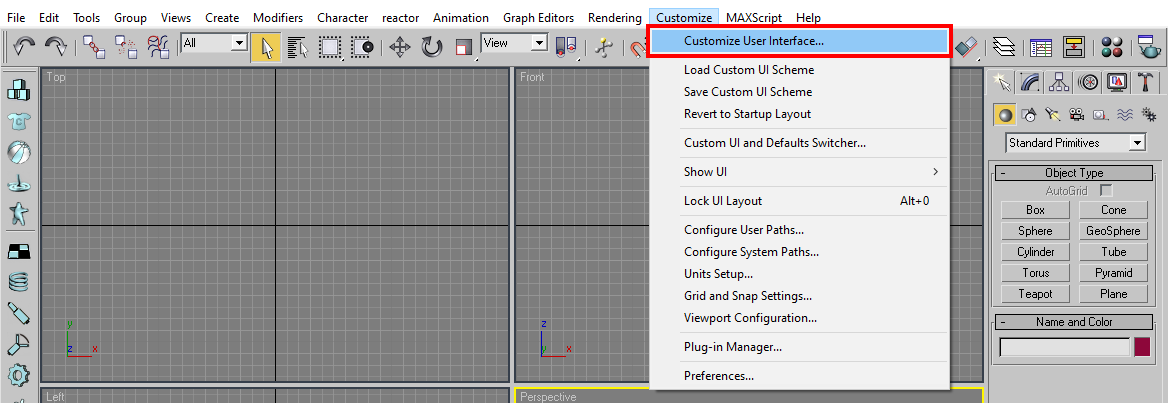
Section titled “Configure W3D Importer”Click on Customize > Customize User Interface…
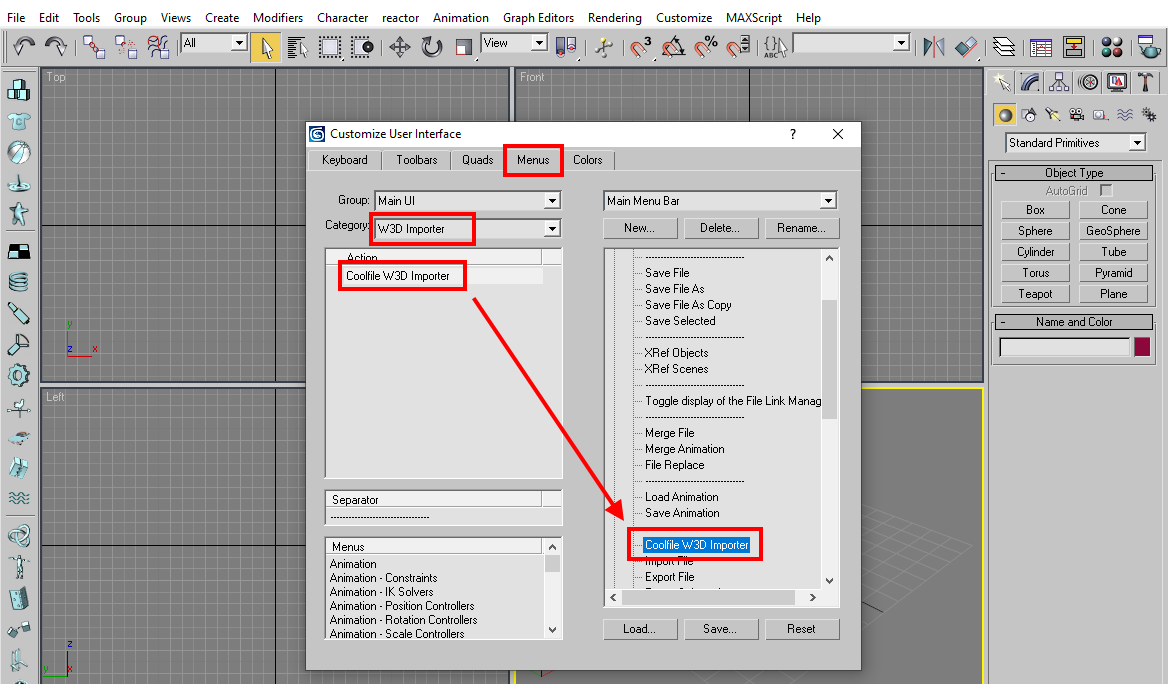
Then in Menus tab, select W3D Importer in Category, and move the Coolfile W3D Importer into the File menu.
Import W3D
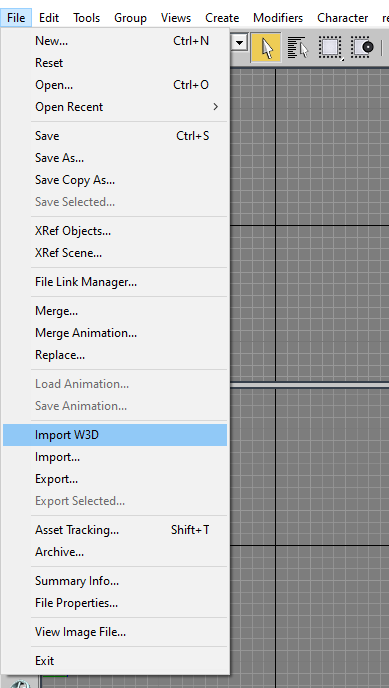
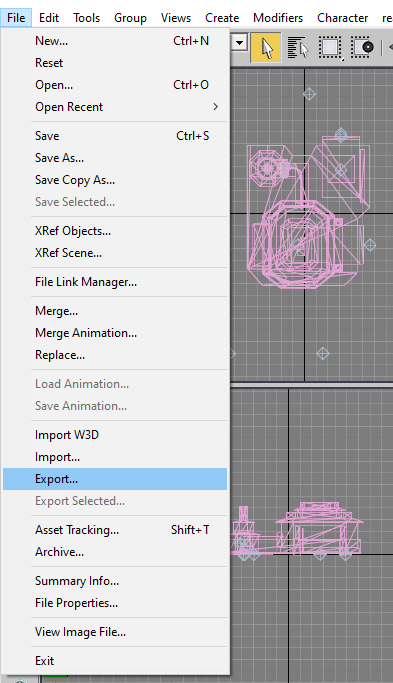
Section titled “Import W3D”To import a W3D file, select File > Import W3D.
To unload it, select File > Reset.
Note: The W3D Importer does not necessarily produce perfect imports. Vertex counts may differ between the original W3D mesh and the imported W3D mesh. If the mesh looks okay, however, you can still use it.
Export W3D
Section titled “Export W3D”To export a W3D file, select File > Export and choose the W3D file format in the Save dialog.
Rescale W3D Animation
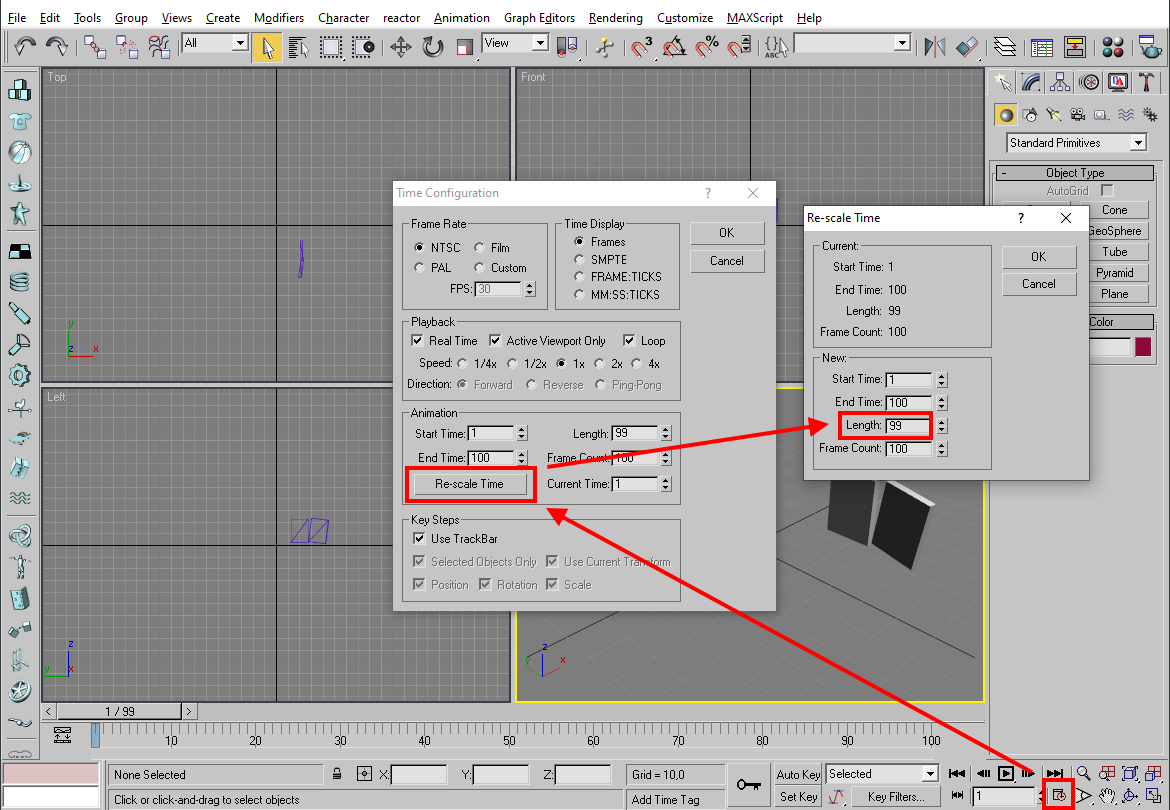
Section titled “Rescale W3D Animation”To rescale a W3D animation, import the W3D file, click on the Time Configuration button at the bottom, hit the Re-scale Time button, and then specify the new frame length.
Note: 30 frames correspond to one game second.