Texturing in Generals and Zero Hour
This document describes how textures are used in the Generals and Zero Hour UI and how to modify and create new textures. Textures are used to provide the visual appearance of various UI elements, such as buttons, backgrounds, and controls.
Texture Files
Section titled “Texture Files”Generals uses .tga (Targa) files to store textures. These files are often large images that contain multiple smaller
images, each used for a different UI element.
Note: While .tga was the original format, support for .psd and .tiff formats has been added in Patch 1.04p
development. These newer formats offer advantages such as layer support, which simplifies the texture editing process.
Additionally, you can also use .dds (DirectDraw Surface) files, specifically in DXT1 or DXT5 formats, and reference
them within the game’s .wnd files.
SCSmShellUserInterface512_001.tga
Section titled “SCSmShellUserInterface512_001.tga”You can find the texture files in the Data\Art\Textures directory.
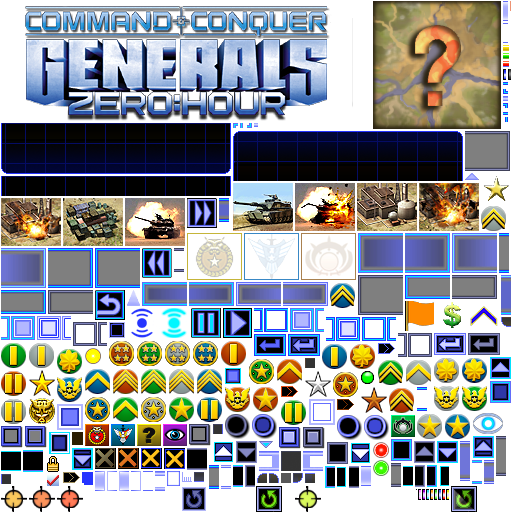
The main texture file used for the game’s UI is SCSmShellUserInterface512_001.tga. This file contains a large number
of textures, packed together into a single image file. The dimensions of this texture are typically 512x512 pixels, but
other sizes might be used for other files.
Mapping Textures
Section titled “Mapping Textures”The game uses .ini files to define how the textures within the TGA files are used. These mapping files specify the
name, location, and other attributes of each individual texture within the larger TGA file.
SCSmShellUserInterface512.ini
Section titled “SCSmShellUserInterface512.ini”You can find the mapping files in the Data/INI/MappedImages/TextureSize_512 directory.
The main mapping file for SCSmShellUserInterface512_001.tga is SCSmShellUserInterface512.ini. This file contains
entries that map texture names to their coordinates within the texture file.
Structure of a Mapping Entry
Section titled “Structure of a Mapping Entry”Each mapping entry in the INI file has the following structure:
MappedImage TextureName Texture = TextureFileName.tga TextureWidth = WidthOfTextureFile TextureHeight = HeightOfTextureFile Coords = Left:X Top:Y Right:Z Bottom:W Status = NONEEndTextureName: The unique name used to reference the texture within the game’s WND files.Texture: The name of the .tga file where the texture is stored.TextureWidth: The width of the .tga texture file in pixels.TextureHeight: The height of the .tga texture file in pixels.Coords: The coordinates of the texture within the.tgafile.Left,Top,Right, andBottomdefine the position of the top-left and bottom-right corners of the texture, in pixels.Status: UsuallyNONE.
Example
Section titled “Example”MappedImage Buttons-Disabled-Left Texture = SCSmShellUserInterface512_001.tga TextureWidth = 512 TextureHeight = 512 Coords = Left:358 Top:275 Right:403 Bottom:315 Status = NONEEndIn this example:
- The texture name is
Buttons-Disabled-Left. - The texture is located in the file
SCSmShellUserInterface512_001.tga. - The dimensions of the image are 512x512.
- The texture’s coordinates are
Left:358,Top:275,Right:403,Bottom:315.
Using Textures in WND Files
Section titled “Using Textures in WND Files”You reference textures in WND files using the DRAWDATA tags, such as ENABLEDDRAWDATA, DISABLEDDRAWDATA, and
HILITEDRAWDATA. Each DRAWDATA tag consists of a sequence of exactly nine entries, each defining how a specific
part of the control’s texture should be rendered.
Important: The order and position (or “slot”) of each texture within the DRAWDATA tag is crucial. The game expects
the textures to be in a specific order, and placing them in the wrong slots can lead to incorrect rendering or even
cause the game to crash.
The correct order and slots for textures can be determined by examining the code examples for each specific control.
Even if some parts of the control don’t have a texture and need to use NoImage, you must still include the NoImage
entry in the correct slot.
Example:
It is important to use the example for each specific control and keep the textures in the exact slots so the rendering will be correct; otherwise, you may cause the game to crash.
Creating and Modifying Textures
Section titled “Creating and Modifying Textures”You can create new textures or modify existing ones by editing the .tga files and the corresponding INI mapping files.
Step-by-Step Guide
Section titled “Step-by-Step Guide”-
Edit the
.tgaFile:- Open the TGA file (
SCSmShellUserInterface512_001.tga) with an image editor that supports TGA files (e.g., Photoshop, GIMP). - Add or modify the textures as needed.
- Make sure the new textures do not overlap with existing ones.
- Open the TGA file (
-
Update the Mapping INI File:
- Open the corresponding INI file (
SCSmShellUserInterface512.ini). - For each new texture, create a new
MappedImageentry, as shown above, using a uniqueTextureName, the correct filename,TextureWidth,TextureHeightand the precise coordinates (Coords) of the new texture within the edited TGA file. - If you modified an existing texture, update its
Coordsvalues accordingly.
- Open the corresponding INI file (
-
Test Your Changes:
- Save both the edited TGA and INI files.
- Launch the game and check that the changes to the UI are applied correctly.
Important Notes
Section titled “Important Notes”- Coordinate Precision: Be accurate when recording the texture coordinates in the INI file.
- Texture Overlap: Avoid having textures that overlap in the TGA file.
- Backup (optional): If you are using Git or a similar version control system, a backup is not necessary. However, if you are not using such a system, it’s recommended to always back up the original files before editing.
- DDS: Consider using DDS files in DXT1 or DXT5 formats for textures, which can be referenced in the WND files.
- TGA Format: If you choose to use the TGA format, save your images as a 32-bit uncompressed TGA file.
- Note that texture loading in the engine is handled specially. At runtime, the engine will first attempt to load the
texture with the
.ddsextension (e.g.,Texture.dds). If it doesn’t find the DDS file, it will then try to load the same texture with the.tgaextension (e.g.,Texture.tga). This process occurs regardless of whether the input name is.tgaor.dds. Therefore, if a reference exists forTexture.tgabut onlyTexture.ddsis present, the engine will still successfully load the texture, as it prioritizes.ddsfirst and falls back to.tgaif necessary.